In this tutorial I am using an Ubuntu machine. As Pelican is Python-based, the commands are OS agnostic and should work on other OS. I assumed you are familiar with Python, knows how to create a virtual environment, and pip install Pelican.
We are trying to create a website with a landing page, blog index page and an about page using the Pelican ‘simple’ theme.
Step-by-Step
Install Python 3.14 on your computer. Follow instructions here for windows and macOS, and here for ubuntu.
Install Python virtual environment if it is not installed. Type in this command in your terminal.
pip install python3.14-venvIt is good practice to create a virtual environment for your project.
python3.14 -m venv ~/venv/pelicanActivate your environment. For windows use this command venv_path\Scripts\activate
source ~/venv/pelican/bin/activateInstall Pelican with the markdown plugin.
pip install pelican[markdown]Generate a Pelican project with the following command.
pelican-quickstartIt will ask you a bunch of questions. Here are my answers. In this tutorial we will be uploading our website to github pages.
Where do you want to create your new web site? [.]
What will be the title of this web site? Pelican Tutorial
Who will be the author of this web site? [Your Name]
What will be the default language of this web site? [en]
Do you want to specify a URL prefix? e.g., https://example.com   (Y/n) n
Do you want to enable article pagination? (Y/n) y
How many articles per page do you want? [10]
What is your time zone? [Europe/Rome] America/New_York
Do you want to generate a tasks.py/Makefile to automate generation and publishing? (Y/n) y
Do you want to upload your website using FTP? (y/N) n
Do you want to upload your website using SSH? (y/N) n
Do you want to upload your website using Dropbox? (y/N) n
Do you want to upload your website using S3? (y/N) n
Do you want to upload your website using Rackspace Cloud Files? (y/N) n
Do you want to upload your website using GitHub Pages? (y/N) y
Is this your personal page (username.github.io)? (y/N) n
Once you answered these questions, a project folder will be generated in the current folder. The folder structure will be as follows:
content
output
Makefile
pelicanconf.py
publishconf.py
tasks.py
Create ‘blogs’ and ‘pages’ folder in the ‘content’ folder. In each folder create markdown files as shown below.
content
|----- blogs
        |----- article1.md
        |----- article2.md
|----- pages
        |----- index.md
        |----- about.md
output
Makefile
pelicanconf.py
publishconf.py
tasks.py
Put the following content in each of the markdown file.
article1.md
Title: My First Review
Date: 2010-12-03 10:20
Category: Review

Following is a review of my favorite mechanical keyboard.
article2.md
Title: My second Review
Date: 2010-12-03 10:20
Category: Review

Following is a review of my favorite mechanical keyboard.
index.md
Title: Website Landing Page
Save_as: index.html
Status: hidden

this is the index file
about.md
Title: About
Status: hidden

this is the about file
Copy and paste the following onto your ‘pelicanconf.py’ file. Below the # RELATIVE_URLS = True line.
THEME = 'simple'
DELETE_OUTPUT_DIRECTORY = True  # default was False
SLUGIFY_SOURCE = 'basename'  # default was 'title'

USE_FOLDER_AS_CATEGORY = False  # default was True
PATH_METADATA = r'(?P<path_no_ext>.*)\..*'  # default was ''
ARTICLE_URL = '{path_no_ext}.html'  # default was '{slug}.html'
PAGE_URL = '{path_no_ext}.html'  # default was 'pages/{slug}.html'
ARTICLE_SAVE_AS = '{path_no_ext}.html'  # default was '{slug}.html'
PAGE_SAVE_AS = '{path_no_ext}.html'  # default was 'pages/{slug}.html'

ARCHIVES_SAVE_AS = False
DISPLAY_CATEGORIES_ON_MENU = False

STATIC_PATHS = ['images']

MENUITEMS = (
        ("Home", f"{SITEURL}/"),
        ("Blog", f"{SITEURL}/blogs/"),
        ("About", f"{SITEURL}/pages/about.html"),
)
Go to the folder where you store your Pelican tutorial website folder and run the following command to serve the website locally in your computer.
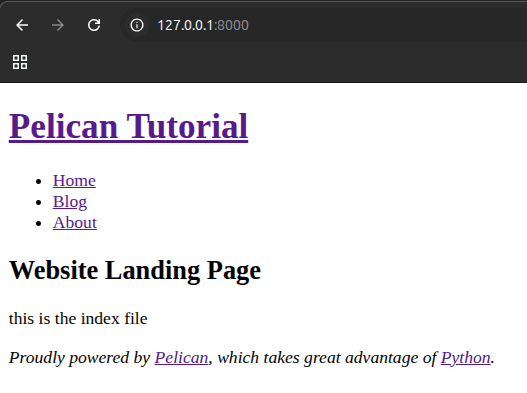
pelican -rlIn your browser go to ‘localhost:8000’. You should see the following webpage.
Congrats! You have created a webpage with a landing page, blog index page and an about page. Next we will have to work on the theme to make the webpage look better.
Explanation
We have modify settings in the pelicanconf.py file in step 6. Here I will provide explanation on why I did that. You can refer to this blogpost for a more detailed explanation.
THEME = ‘simple’ # the default is notmyidea, simple is the most basic of themes in pelican
DELETE_OUTPUT_DIRECTORY = True # Everytime a new generation happens the output folder content is totally deleted and replace with new files
SLUGIFY_SOURCE = ‘basename’ # the url uses the filename instead of the title of the article, default was ‘title’
INDEX_SAVE_AS = ‘/blogs/index.html’ # We want a landing page for our website, so we need the index of the blog to be in the blog folder, default was ‘index.html’
Specify the folder to look for blog articles and the folder to look for pages.
ARTICLE_PATHS = ['blogs']  # default was ['']
PAGE_PATHS = ['pages']  # default was ['pages']
The settings below makes the output folder structure identical to the content folder structure as shown in the Pelican documentation here.
USE_FOLDER_AS_CATEGORY = False  # default was True
PATH_METADATA = r'(?P<path_no_ext>.*)\..*'  # default was ''
ARTICLE_URL = '{path_no_ext}.html'  # default was '{slug}.html'
PAGE_URL = '{path_no_ext}.html'  # default was 'pages/{slug}.html'
ARTICLE_SAVE_AS = '{path_no_ext}.html'  # default was '{slug}.html'
PAGE_SAVE_AS = '{path_no_ext}.html'  # default was 'pages/{slug}.html'
ARCHIVES_SAVE_AS = False # do not generate a archives.html to index the old posts
DISPLAY_CATEGORIES_ON_MENU = False # Do not display all the categories of articles on the navbar menu
STATIC_PATHS = [‘images’] # the folders to find the static images, .js files etc.
The menu items to display and their respective url.
MENUITEMS = (
        ("Home", f"{SITEURL}/"),
        ("Blog", f"{SITEURL}/blogs/"),
        ("About", f"{SITEURL}/pages/about.html"),
)